Google Sheets Budget Template: Copy the Layout and Customize It (2026)
Google Sheets budget template layout to copy: 6 columns, 3 formulas and the 4 things Google's free Monthly budget template leaves out, plus a worked month.
By Ultimate Budget Planner by Cosmo Suite · Editorial policy
Published · 8 min read
You open Google's free Monthly budget template and fill in October, but by mid-November you are not sure whether to copy the file, clear it, or start a second tab. Meanwhile the car insurance that bills every six months is nowhere on it, and neither is the credit card balance.
The gallery template is a fine one-month worksheet; however, it was never designed to run a whole year.
What you want from a Google Sheets budget template is a layout that runs all year from one list. That layout is compact: six columns, three formulas and four additional tabs. You can build it yourself or start from a Google Sheets budget template that already runs the year from one list.
Here it is, ready to copy, with a worked example month so you can compare your own totals against it.
Key takeaways
- Google's gallery template covers one month and one account, with no recurring bills or payment status.
- Six columns on one Transactions tab, plus three SUMIFS formulas, run a whole year.
- Yearly bills need a monthly set-aside. In the worked month that row is $185.
- The most difficult part to build yourself is turning recurring bills into dated entries.
Google's Free Template Is a One-Month Worksheet
It handles one month well and stops there. Google Sheets ships a free Monthly budget template in its Template gallery. It has a Summary tab with planned versus actual income and expenses, fed by a Transactions tab where you log each purchase. For a single month with one account, that covers most needs.
A Google Sheets budget template is a ready-made spreadsheet that compares planned and actual spending by category. The government's consumer.gov budget guide describes the same core: list expenses, work out monthly income, and subtract. Four things go missing in everyday use, especially across several months.
- No recurring list. Rent, phone and streaming subscriptions have to be retyped every month.
- No account column. You cannot separate credit card spending from your checking account.
- No paid status. A planned bill and a paid bill look identical.
- One month per file. There is no annual view, so trends and yearly bills have nowhere to live.
Each gap is a missing column or tab, so add them and the free template turns into a budget you can still be using next March.
Google Sheets Budget Templates: The Decision Table
Pick by how much you want to build. Three different routes get you a working budget in Google Sheets.
| Route | Setup time | What you get | Best for |
|---|---|---|---|
| Gallery Monthly budget | 10 minutes | Planned vs actual for one month | Trying budgeting for the first time |
| Copy this layout | About an hour | A year from one list, recurring bills, accounts | People who like knowing every formula |
| Linked ready-made template | 20 to 30 minutes | List, month tabs, paycheck view, calendar, year | Biweekly or semi-monthly pay, several accounts |
If you are still deciding between a sheet and an app, the budget spreadsheet guide matched to how you get paid covers that choice first.
The Worked Month: Paid on the 1st and the 15th
[Original data] This month was built in the planner's own Google Sheets copy. The numbers are illustrative, not a customer's data.
The example reader is paid semi-monthly, which means $2,100 on the 1st and $2,100 on the 15th, so $4,200 every month with no third-paycheck surprises. The irregular yearly bills are what trip them up.
| Line | Money in | Money out | Left |
|---|---|---|---|
| Paycheck, 1st | $2,100 | $2,100 | |
| Paycheck, 15th | $2,100 | $4,200 | |
| Rent and 8 monthly bills | $2,180 | $2,020 | |
| Yearly costs set aside (see below) | $185 | $1,835 | |
| Groceries, gas, eating out, household | $1,140 | $695 | |
| Savings transfer | $500 | $195 | |
| Left to spend, flexible | $195 |
[Unique insight] The $185 row is the one Google's template cannot hold, because it belongs to bills that land in other months. A sinking fund is money set aside each month for one of those later bills. Here are the four in the example:
- Car registration, $240 once a year: $240 ÷ 12 = $20 a month.
- Car insurance, $630 every 6 months: $630 ÷ 6 = $105 a month.
- Holiday gifts, $600 in December: $600 ÷ 12 = $50 a month.
- An annual software subscription, $119: $119 ÷ 12 ≈ $10 a month.
Without that row, this month appears $185 richer than it is. As a result, the shortfall arrives all at once in March or December.
The Six Columns to Copy
Start with one tab called Transactions. Put these headers in row 1.
| Column | Example | Why it is there |
|---|---|---|
| Date | 10/15/2026 | Puts the line in a month and a pay period |
| Account | Checking, Visa | Shows where each dollar sits |
| Category | Bills | The top level you budget against |
| Sub-category | Car insurance | Detail without bloating categories |
| Amount | -105.00 | Positive for money in, negative for money out |
| Paid | ☑ | Planned versus done |
Turn Account, Category and Sub-category into dropdowns with Google's in-cell dropdown list. That way "Groceries" is never spelled three different ways. Insert a checkbox in the Paid column, then freeze row 1 and turn on a filter.
Start each account with one opening-balance line, using today's date and the category "Opening balance", and tick Paid. Enter the current balance as a positive amount, or as a negative amount for a card balance you owe.
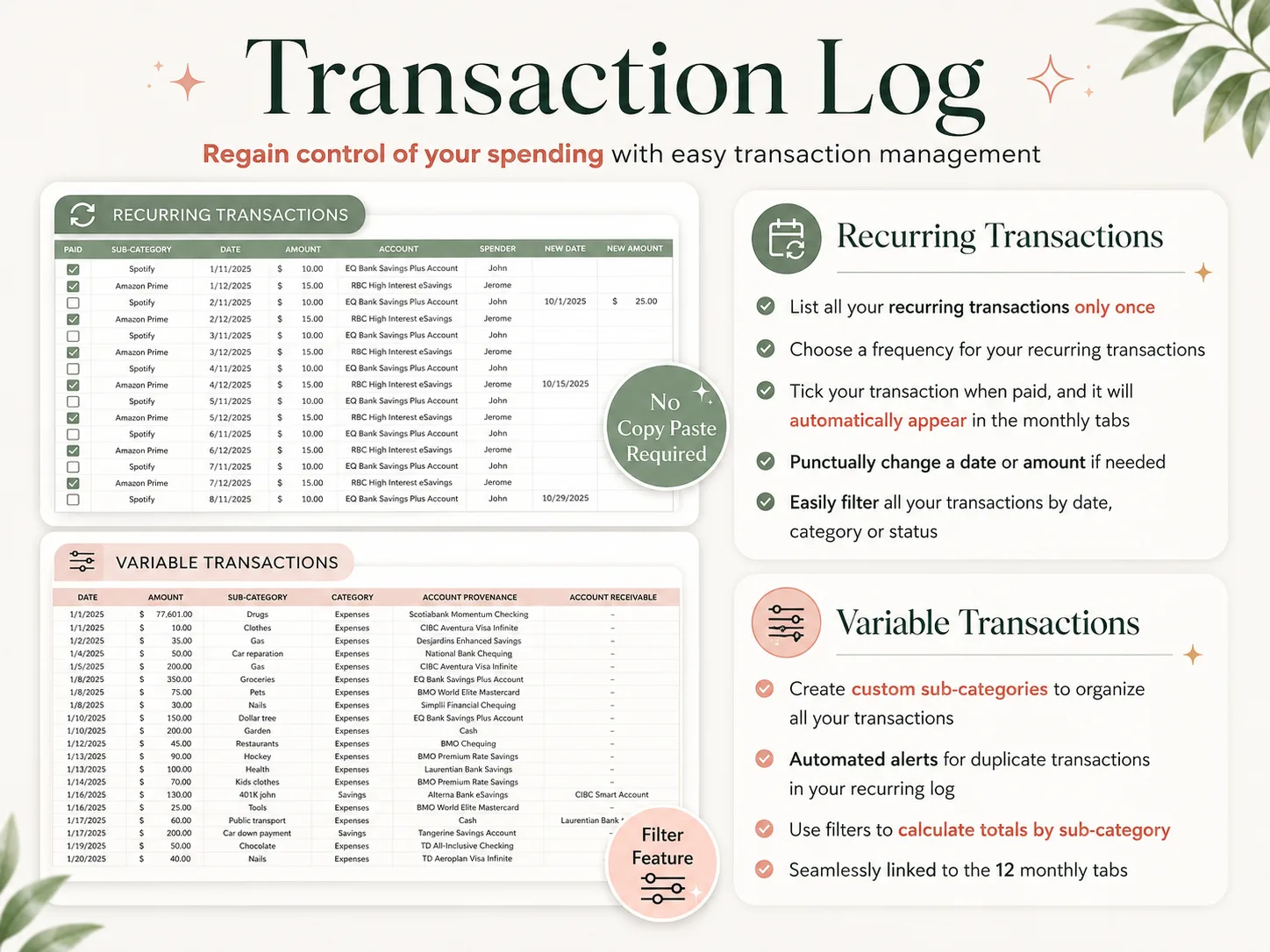
Keep a second tab, Recurring, with name, amount, frequency, first date and account. On the worked month that is 2 paychecks, 9 monthly bills and 4 yearly costs. Those 15 recurring rows never need retyping.
The Three Formulas That Do the Work
Every summary formula asks the Transactions tab a specific question. SUMIFS is the function that adds up only the rows matching every condition you give it, such as category, paid status and date range. Google documents its syntax on the SUMIFS help page.
Spent by category for a month (paid lines only, shown as a positive number).
=-SUMIFS(Transactions!E:E, Transactions!C:C, "Groceries", Transactions!F:F, TRUE, Transactions!A:A, ">="&DATE(2026,10,1), Transactions!A:A, "<"&DATE(2026,11,1))
Unpaid bills due before a date (what you still owe, as a positive number).
=-SUMIFS(Transactions!E:E, Transactions!C:C, "Bills", Transactions!F:F, FALSE, Transactions!A:A, "<"&DATE(2026,10,15))
Balance by account (opening balance plus every paid line).
=SUMIFS(Transactions!E:E, Transactions!B:B, "Visa", Transactions!F:F, TRUE)
Test it on a small example. For example, groceries has a $50 target, a paid line of -60 and a planned, unpaid line of -40. The first formula returns 60, so the cell is over target and turns red, while the unpaid -40 waits until you tick it. Likewise, a checking account opened at 500 with that paid -60 shows 440.
Put the first formula in a monthly tab next to each category's target, and you have budget versus actual. Duplicate the tab twelve times and change the dates, and the entire year runs from one list. Finally, add a conditional formatting rule that turns the actual cell red when it passes the target.
Recurring Bills Are the Part Most Free Templates Skip
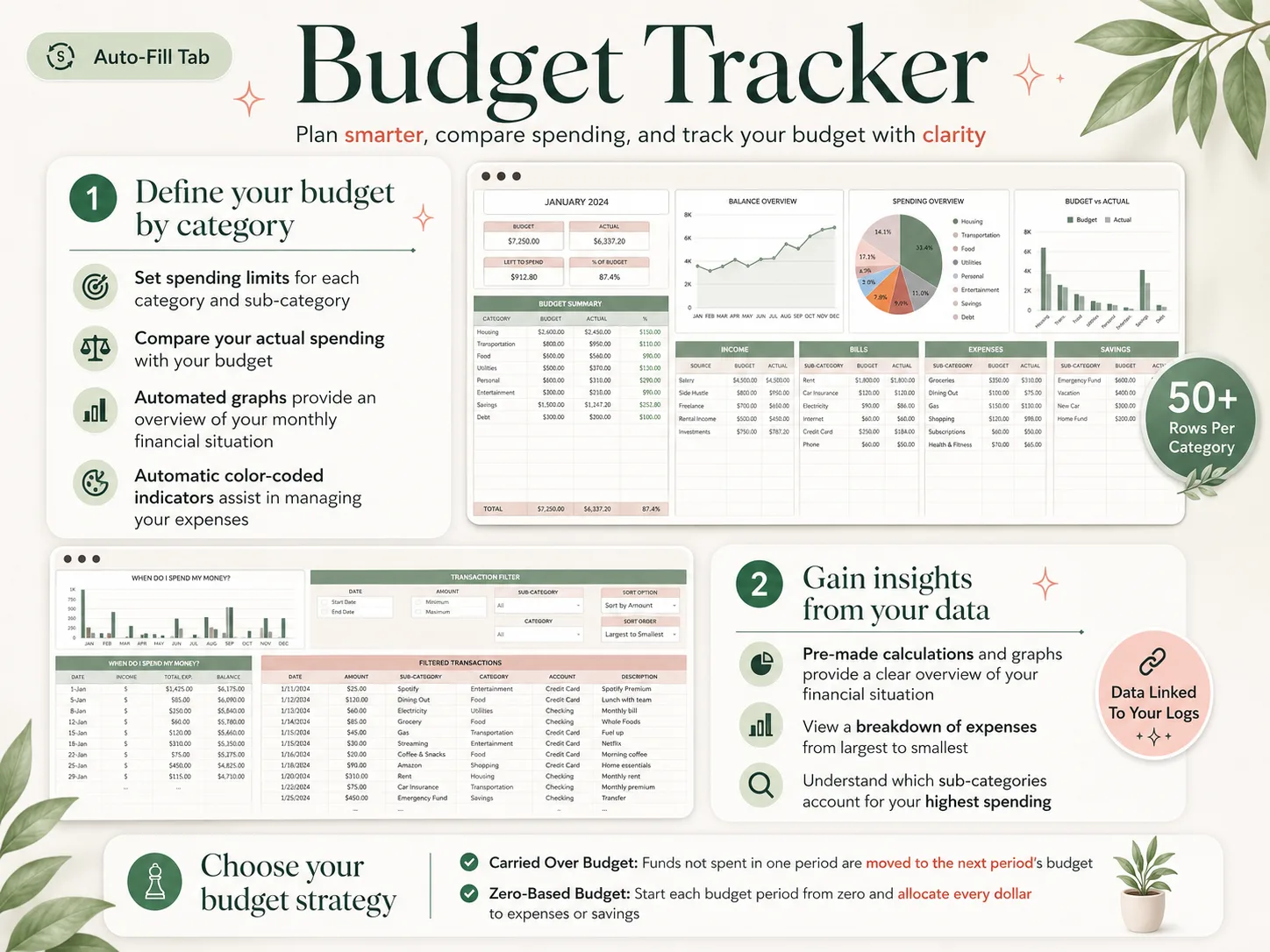
This is the hardest piece to build yourself. You have to turn the Recurring tab into dated lines on the Transactions tab. A monthly bill needs 12 dates a year, a biweekly paycheck 26, a 6-month premium 2. In Google Sheets that means SEQUENCE or EDATE formulas per frequency, stacked into one list with the variable lines.
You can build it in an afternoon; however, a home-built sheet that stops here leaves you typing rent into every month by hand. To skip that afternoon, a ready-made Google Sheets budget with recurring bills already wired takes one row per bill.
Frequencies worth supporting: every week, every 2 weeks, every 4 weeks, every month, every 2 months, every quarter, every 6 months and every year. Those eight frequencies cover nearly every bill and paycheck.
Ticks beat edits. Say the electric bill is $112 this month, not $95; override that one occurrence rather than editing the master row.
A calendar view pays for itself. Plotting the recurring dates on a monthly grid reveals the week where four bills arrive together. The CFPB's Your Money, Your Goals toolkit includes a printable bill calendar for the same reason.
Why Trust This Article
We are the Cosmo Suite team that builds the Ultimate Budget Planner, which means we sell one of the templates compared here. Even so, the layout and formulas above are free to copy and work without it.
Methodology: function syntax and steps come from Google's own Docs Editors Help pages, checked on 3 October 2026. The worked month is an illustrative example built in our own template, not a customer's data, and each total can be recomputed from the lines shown.
Read more about us and our editorial policy, or contact us through the site footer. Test any formula on a duplicate of your sheet before you rely on it.
Where the Ultimate Budget Planner Fits
Copying the layout gives you the transaction list and the monthly totals. The recurring engine, the paycheck grouping and the calendar are the slow part, and that is what the Ultimate Budget Planner already has built.
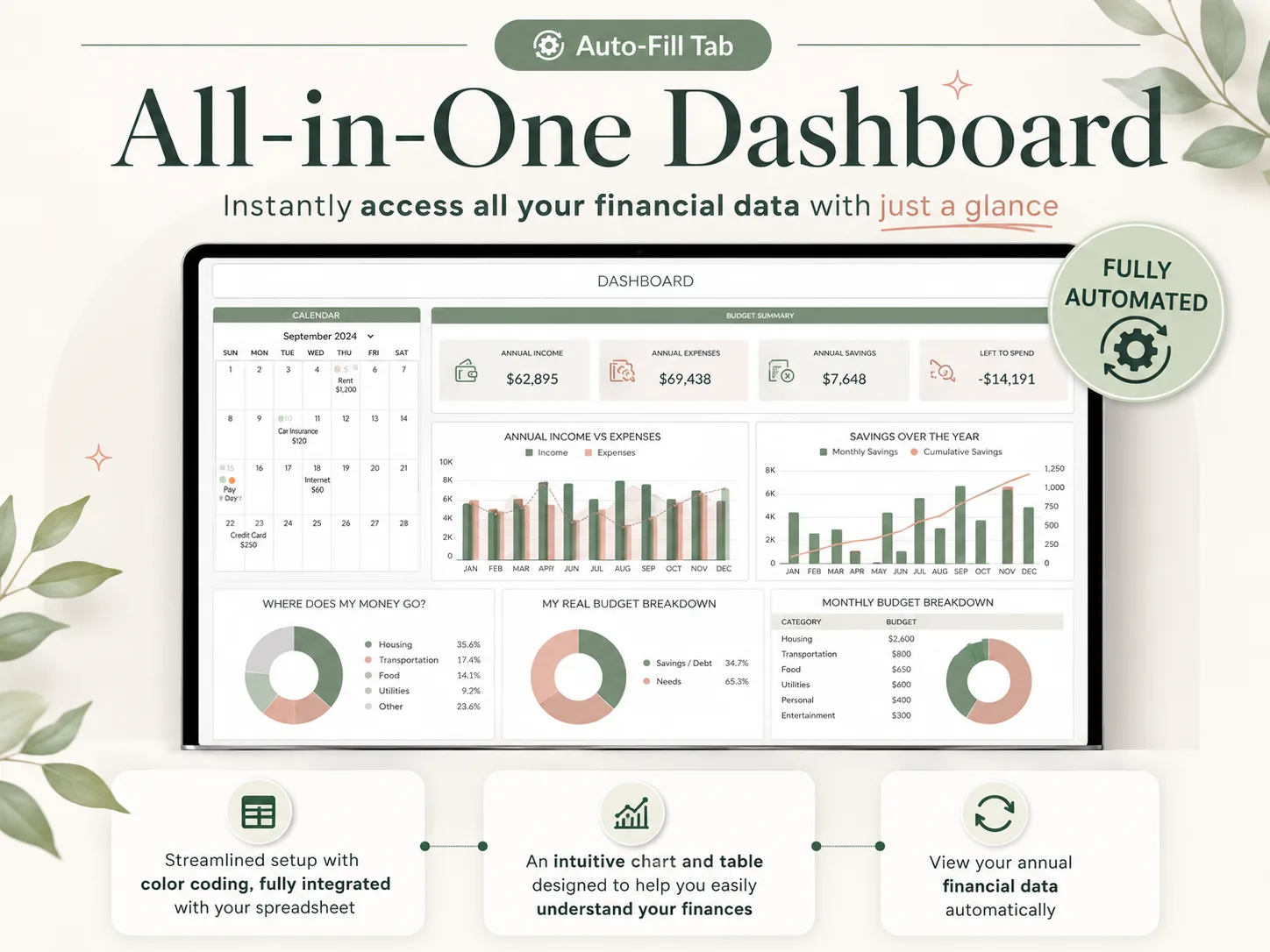
Its Google Sheets copy comes with an Excel file too. It has 28 tabs in 4 sections.
- Transactions: Easy Setup, Bank Accounts, Recurring, Payments and Variable.
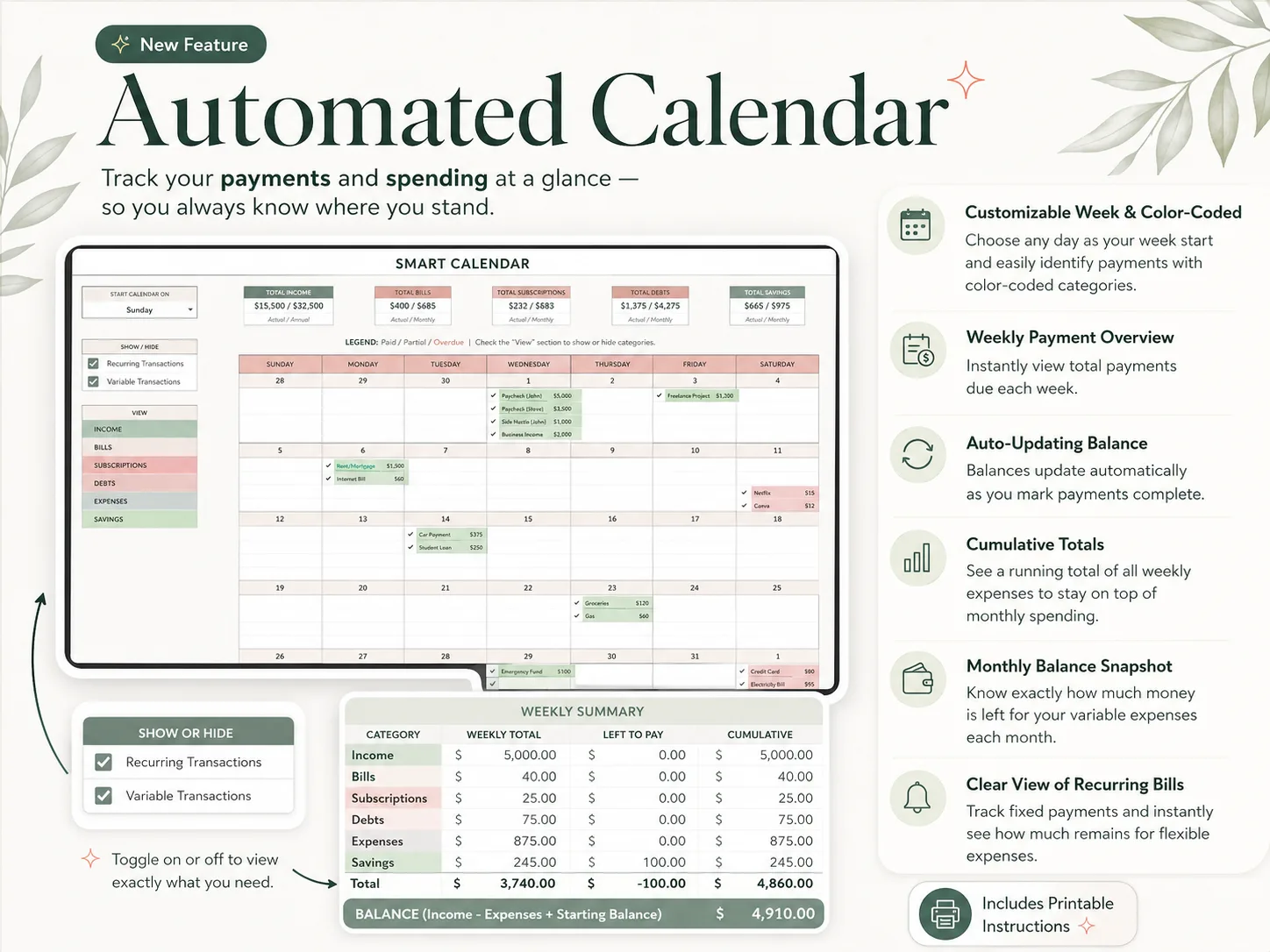
- Dashboards: All-in-One, Annual Totals, Automated Calendar and Paycheck.
- 12 Monthly Budget tabs.
- Build Your Wealth, which includes Sinking Funds, 50/30/20, Net Worth and a No-Spending Challenge.
On the worked month, the 15 recurring lines go on the Recurring tab once, each with its frequency. Tick each one paid as it clears, while variable purchases such as groceries and gas go on Variable with a category and sub-category. Then the October tab shows budget versus actual, and the Paycheck dashboard groups the month into the 1st and 15th. The four yearly costs sit in Sinking Funds.
It costs $9 once and is reusable every year, with a setup PDF and a YouTube tutorial. Are you leaving an app rather than starting fresh? See which cheaper YNAB alternatives keep the same method. Every tab is shown on the Google Sheets and Excel budget planner page.
Frequently asked questions
Does Google Sheets have a free budget template?
Yes. Open Google Sheets, choose Template gallery and pick Monthly budget or Annual budget. The monthly one has a Summary tab with planned and actual amounts and a Transactions tab. It covers one month per file, with no recurring bills, account balances or paycheck view, so most people add those or move to a fuller template.
How much does a Google Sheets budget template cost?
It depends on how much you want built for you. Google's gallery templates and a sheet you build from this layout are free. Ready-made templates with linked tabs usually sell as a one-time purchase; the Ultimate Budget Planner is $9 once and includes a Google Sheets copy and an Excel file.
Can two people use the same Google Sheets budget at the same time?
Yes. Share the file with edit access and both of you can add transactions from a laptop or the Google Sheets phone app, and you will see each other's entries within seconds. Add a column for who spent it if you want totals per person. The one thing Sheets will not do is pull transactions from your bank.
How long does it take to set up a Google Sheets budget template?
About an hour for the first month if you copy the layout here: 15 minutes for the columns, dropdowns and checkboxes, 20 for the recurring list, and the rest for category targets and the transactions since your last payday. A ready-made template cuts that to entering your own accounts, bills and targets.
What is the difference between a Google Sheets budget template and an Excel one?
Mostly where the file lives. Google Sheets runs in a browser and the phone app and shares like a document; Excel is stronger offline and with very large files. SUMIFS, dropdowns and conditional formatting work in both, though charts and some formulas can shift when you convert, so use a template made for each.
What is the fastest way to get a working Google Sheets budget?
Copy a template whose tabs are already linked, then enter only your own data. In the Ultimate Budget Planner's Google Sheets copy you list your accounts, enter recurring bills and paychecks once with a frequency, and log spending on the Variable tab; the monthly tabs and dashboards fill from there.